
Appearance
Cleaning up Logs
A Log is created each time an Action is executed. Over time the volume of Logs can grow quite large and this will slow down system performance when reviewing Logs as part of daily maintenance.
Assuming you have a robust backup scheme in place you should be able to clean out old Logs. If after cleaning them out you find you do need to access these Logs you can restore a backup of the configuration database.
You can clean up old Logs through the Flow Designer application, or alternatively your system administrator can run a script on the Flow configuration database. It is possible to schedule the script to run automatically. If your system administrator is using the inbuilt database backup functions of Flow then they can also enable automatic cleaning of Logs as part of this process. Refer to the Administration Guide for information on setting up Flows inbuilt backup function.
Deleting Logs manually
Open the Flow Designer
Navigate to
Logs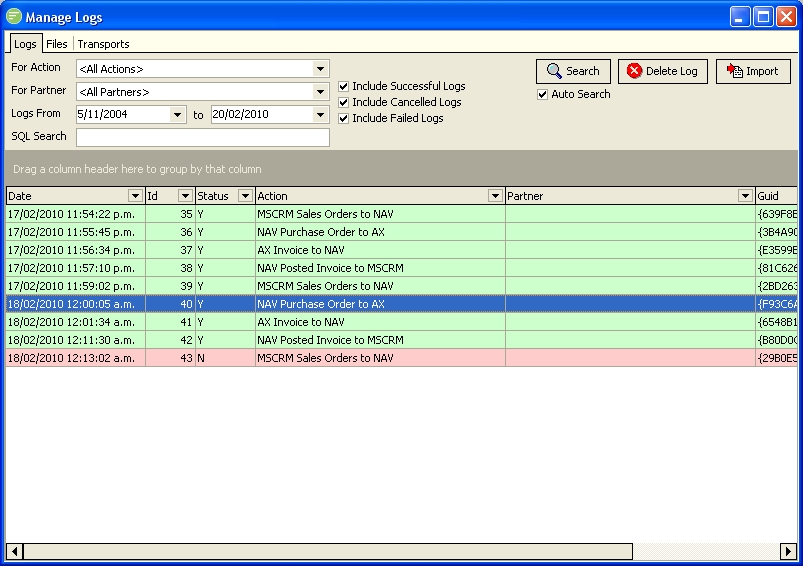
Specify appropriate filter criteria to display only the logs that you want to delete. This generally involves setting the following filter
- Set
For Actiondrop down to<All Actions> - Set
For Partnerdrop down to<All Partners> - Set
Logs Fromto a very early date andToto a date about 1 month ago - Ensure that
SQL Searchfield is blank - Enable the
Include Successful Logs,Include Cancelled Logs, andInclude Failed Logscheck boxes
- Set
Press
Control-Atogether on the keyboard to select all displayed logsClick the
Delete Logsbutton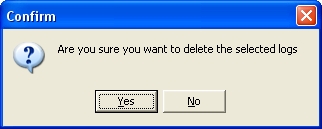
Click
Yesto confirm the action