
Appearance
Managing Security
Every Configuration Item within Flow maintains its own security list. This security list determines the rights that any particular user account has for the configuration item.
A user's rights are determined based on the collective result of security assigned to users/groups that the current person belongs to. A windows user group can be assigned as a Flow user so for the purpose of this page we will refer to a user or group as a Windows User.
If a person is logging in using Windows Authentication then they may in fact belong to several groups that have been assigned as Windows Users in Flow. In this case the resulting security for that person is the collective security of all the groups that person belongs to.
TIP
When determining the resulting user right a "Denied" flag overrides all other settings. If any user/group that a person belongs to has a denied permission then the resulting security right is denied.
WARNING
If no security permissions have been assigned then ALL users will have access to the configuration item. By default when creating a new configuration item it will not have any security permissions
User security is best explained with an example. The following screen shot shows user security applied to a DB Connection. The window looks similar no matter what configuration item the security is being applied to.
Security Rights
The following security rights can be applied to a user account. For each of the rights a user account can either be Allowed or Denied. Denied user rights override all other settings regardless of the settings of other groups the user may belong to.
Read
The Read security right allows the user to view the module. This means they will be able to see the configuration of the module but will not be able to edit the item.
Write
The Write security right allows the user to edit the module. This means they will be able to change the configuration of the module. By assigning this right the user will also be able to Read the module (regardless of whether you have selected to allow the Read right specifically), however if you have Denied the Read right for this user then they will not be able to open the module and therefore unable to edit the module.
You require the Write security right if you wish to export the module to a Template.
Execute
The Execute security right only applies to modules that can be executed (at this stage only Actions). Even though you can set this right for other configuration items, it will simply have no effect. By allowing this right the user will be allowed to execute the Action.
Full
The Full security right allows the user full access to the module. This effectively provides them with Read, Write, and Execute permissions regardless of whether you have allowed those rights specifically. Beyond Read, Write,and Execute the Full security right also allows the user to edit the security permissions of the module.
Editing Security
- Open the Flow Designer
- Right click any configuration item and select
Security - Click
Cancelto close the window without changes, or clickSaveto close the window and save any changes you have made
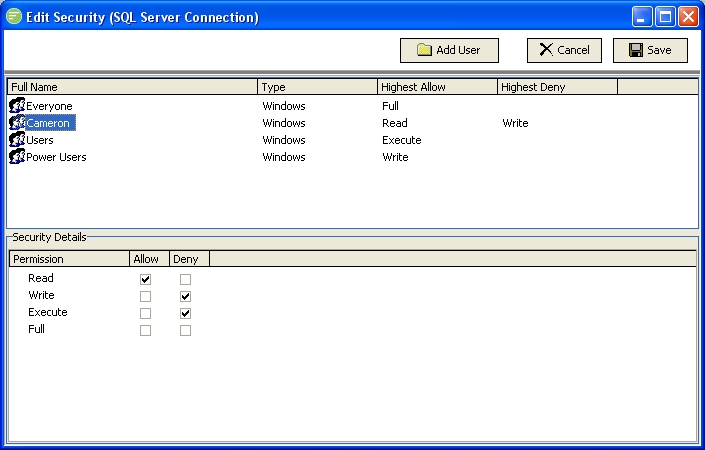
The above Edit Security window shows the list of users with permissions assigned to the configuration item (in this case a DB Connection). The window has the "Cameron" user selected and the details of this user are display in the bottom half of the window.
In the above example the Cameron user is also a member of the Users and Power Users group. The resulting permissions for the Cameron user are therefore the ability to Read (View) the configuration object, but he is denied the ability to Write (Edit) or Execute the item. This is the case even though the Users and Power Users group, of which Cameron is a member, have the ability to Write and Execute the item. Because he is specifically Denied he will not get this right even though other groups he belongs to do. Any other user account that is a member of the Users or Power Users group that is not Cameron will have the ability to Write and Execute the item.
Adding a user to the security permissions
You can only add users that are linked to Flow through the Manage Users window
- Click Add User. The list of users (excluding those already added to the permissions) is displayed.
- Double click the user account that you wish to add to permissions for
- The selected user is now displayed in the
Edit Securitywindow and its details are displayed in the bottom half of the window - Set the desired permissions for the user account
Editing an existing users permissions
- Select the user from the displayed list. The details are displayed in the bottom half of the window
- Set the desired permissions for the user account
WARNING
Do not double click the user account as this will remove it. If you make a mistake simply cancel the Edit Security window and the changes will not be saved.
Removing an existing users permissions
- Double click the user that you wish to remove. The user account will disappear from the list.
- If you make a mistake simply cancel the
Edit Securitywindow and the changes will not be saved.