

Appearance
Scheduled Interval
Run at scheduled intervals
An Action can be executed automatically by scheduling it under Statelake Service, which is a Windows Service that runs in the background on a specific machine on your network.
All you need to do is configure the Action to have a schedule, and it will be picked up by Statelake Service and executed automatically.
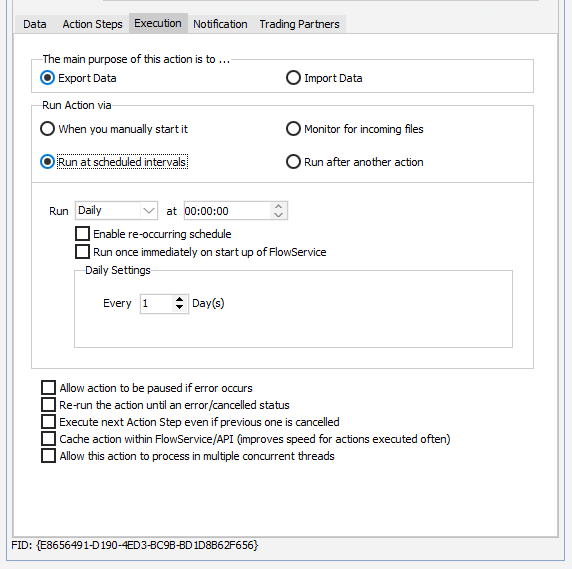
| Field Name | Description |
|---|---|
| Run | Select the frequency to run the Action - either Daily, Weekly, or Monthly. The most common setting is Weekly. For Daily mode you can specify daily frequency of the schedule. For Weekly mode you can specify the weekly frequency of the schedule along with which days of the week the schedule will run on. For monthly mode you can specify the monthly frequency of the schedule along with which day of the month the schedule will run on. If you select a day that is greater than the number of days in a particular month it will run on the last day of the month (ie if set to 31 it will run on the 30th day of June). |
| at (Start Time) | Enter the time that the Action will first execute. |
| Enable re-occurring schedule | Select to enable re-occurring processing. If selected, this tick box will be renamed to Repeat Every and more detail (below) will be requested. |
| Repeat Every | This is required if re-occurring mode is selected. Enter the time interval that the Action will repeat. If the box is unticked, the box will be renamed back to Enable re-occurring schedule and the extra detail requirement will also disappear. |
| Until | This finish time is required if re-occurring mode is selected. Enter the stopping time for the Action. |
| Run once immediately on start up of Statelake Service* *FlowService | Select to have the Action run immediately upon the startup of Statelake Service. It will then continue to execute as per its schedule. |
| Daily Settings | Only displays if Run type is Daily. Enter the number of days between the running of the scheduled Action. The default value is 1.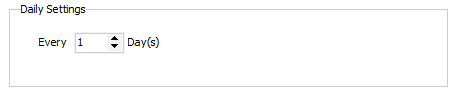 |
| Weekly Settings | Only displays if Run type is Weekly. Enter the number of weeks between the running of the scheduled Action. The default value is 1. Tick the day of the week that the Action will run on.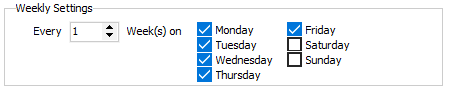 |
| Monthly Settings | Only displays if Run type is Monthly. Enter the number of months between the running of the scheduled Action, and which number day of that month the action will run.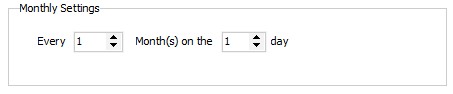 |
| Allow action to be paused if error occurs | This option pauses the Action until the operator can resolve the error and resume the Action. This is useful if the schedule is set to repeat often. If not enabled, the Action will run at each repeat interval and send another error notification email. In cases where it takes you a while to respond to the error, this could mean a large volume of error emails is sent. If enabled, the Action will pause after the first error and notify the operator based on the email notification settings. They can then resolve the error and resume the Action. |
| Re-run the action until an error/cancelled status | Once triggered, the Action will repeat continuously until an Error or Cancelled status has occurred. This is normally used when you want the Action to start up every 1 hour or so, and then run repeatedly until it processes all waiting data. This is commonly used when the Action is configured to process files that cannot be monitored for. |
| Execute next Action Step even if previous one is cancelled | This allows the following Action Step to execute even if the result of the previous step is Cancelled. |
| Cache Action within FlowService/API | Select to cache this Action object in FlowService or FlowAPI. It improves the speed for Actions executed regularly. |
| Allow this action to process in multiple concurrent threads | Allow this Action to execute in multiple threads concurrently. |