

Appearance
Design - DB (Database) Definitions
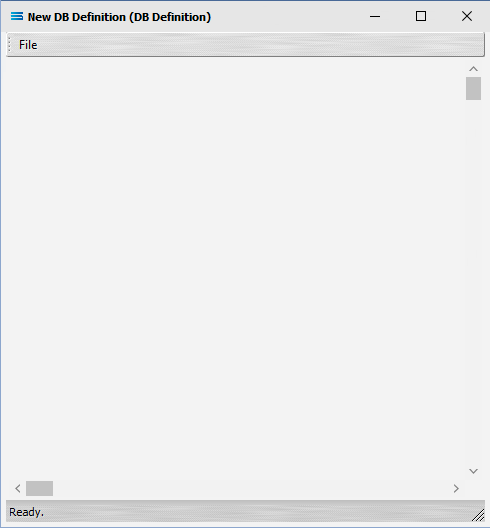
Clicking Design, opens the DB Definition designer canvas.
The first time this is opened for your DB Definition, this canvas will be blank.
This area creates, maintains, and displays dataviews belonging to your DB Definition - regardless of whether they apply to Source or Destination datasets.
These dataviews tell Statelake what datasets and fields are to be used, and how they are to be used.
Existing DB Definition Dataview
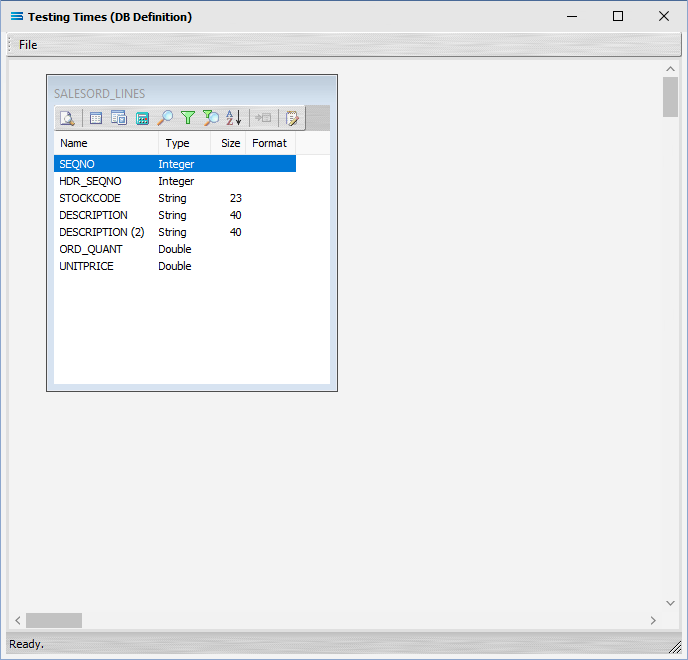
If a DB Dataview already exists, it will display here, as illustrated below.
Dataview Tabs
| Tab Name | Description |
|---|---|
| Preview | Displays a Preview of the data from the dataview query.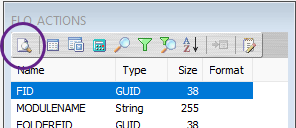 |
| Tables | Opens the Tables tab for the dataview.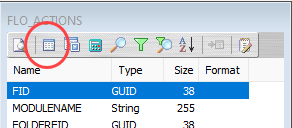 |
| Fields | Opens the Fields tab for the dataview. |
| Calcs | Opens the Calcs tab for the dataview. |
| Search | Opens the Search tab for the dataview. |
| Group | Opens the Group tab for the dataview. |
| Group Search | Opens the Group Search tab for the dataview. |
| Sort | Opens the Sort tab for the dataview. |
| Link | When activated, edits an existing relationship Link, or creates a new Link. |
| SQL | Opens the SQL tab for the dataview. |
New DB Definition Dataview
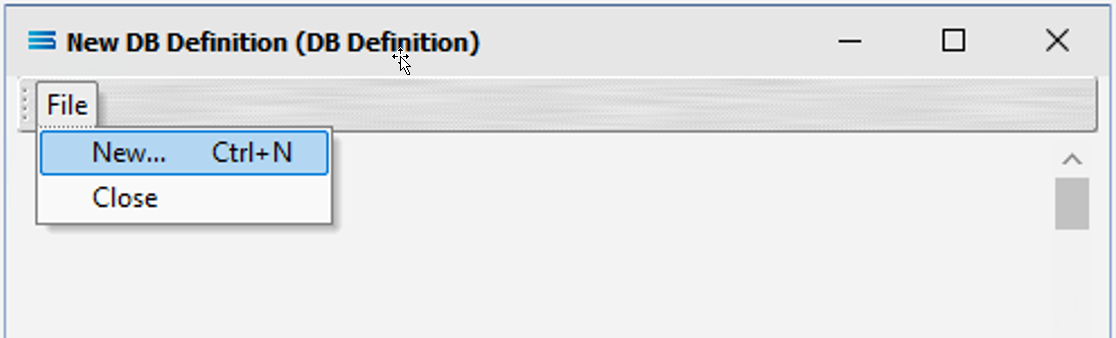
However, for a new DB Definition or to add another dataview, select File and New (or Ctrl-N) to create a new dataview to configure.
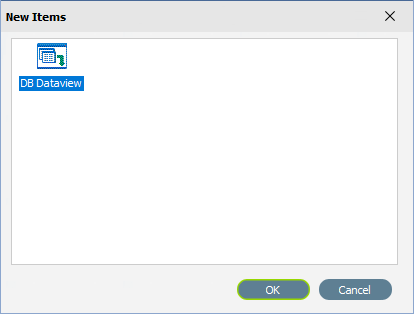
Selecting DB Dataview is the only option to continue.
Buttons
| Button Name | Description |
|---|---|
| OK | Click to save any changes you have made. All changes will be lost if you do not click the OK button. |
| Cancel | Click to Cancel any changes you have made. |
DB Dataview
A DB Dataview does exactly what the name suggests - it allows you to perform a query on the specified database, and view the data.
DB Dataview will open the database that was specified on the initial screen, and display all of the data held within that database, in a convenient multi-tabulated query designer window.

Tabs
| Tab Name | Description |
|---|---|
| Tables | Displays all of the Tables contained within the selected database that are available to be accessed for this query. |
| Fields | Displays all of the Fields that are contained within the tables that were selected for the query. |
| Calcs | |
| Search | Enter any Search criteria here. |
| Group | |
| Group Search | |
| Sort | |
| SQL | Displays the SQL code that has been generated by the selections made in this query, This code updates in live time. |