Appearance
New Trading Partner
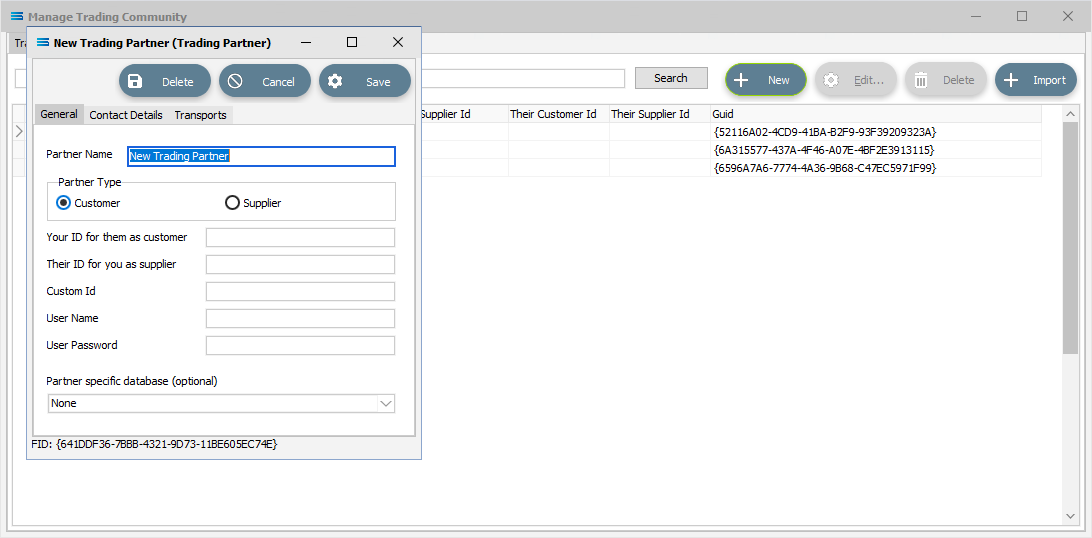
The New Trading Partner window will open.
Buttons
| Button Name | Description |
|---|---|
| Save | Click to Save any changes you have made, else all changes will be lost. |
| Cancel | Click to Cancel any changes you have made. |
| Delete | Click to Delete this Trading Partner. You will be asked to confirm your choice. This has the same effect as double-clicking on the Trading Partner in the list on the Manage Trading Community window. |
General Tab
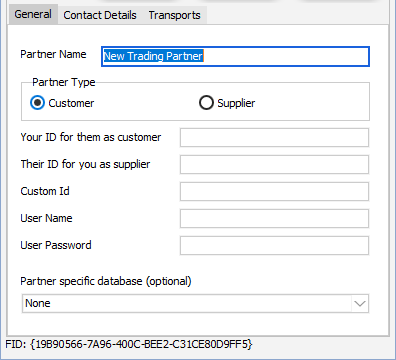
Enter the General options you need to fill in for all Trading Partners.
Fields
| Field Name | Description |
|---|---|
| Partner Name | A friendly name for the Trading Partner. This is the name that the Trading Partner will be known as throughout the configuration. You should enter something meaningful to help you easily recognise the Trading Partner. This name corresponds to the Trading Partner tag <TPName>. The name corresponds to to the Partner Object property Partner.CompanyName. The name also corresponds to the database column MODULENAME. |
| Partner Type | The type of database you wish to connect to. The options are Customer or Supplier. |
| Your ID for them as customer | Only shows if the Partner Type is Customer. Enter your unique ID for them as a customer of yours. These unique IDs are generally referred to as account numbers, and will be dictated by a particular business system in your company such as your financial system. This corresponds to the Trading Partner tag <TPCustomerId>. This corresponds to the Partner Object property Partner.CustomerId. This corresponds to the database column CUSTOMERID. |
| Their ID for you as supplier | Only shows if the Partner Type is Supplier. Enter your unique ID for you as a supplier of yours. These unique IDs are generally referred to as account numbers and will be dictated by a particular business system in your company such as your financial system. This corresponds to the Trading Partner tag <TPTheirSupplierId>. This corresponds to the Partner Object property Partner.TPSupplierId. This corresponds to the database column TPSUPPLIERID . |
| Custom Id | This is a spare field for you to provide a Custom ID. This can be used in mappings to assist with linking a Trading Partner. This corresponds to the Trading Partner tag <TPFlowNetId> or <TPMemberID>. This corresponds to the Partner Object property Partner.FlowNetId. This corresponds to database column MEMBERID. |
| User Name | Provide a User Name for them if you wish them to have access to your FlowWeb or FlowTransportWeb web sites, This corresponds to the Trading Partner tag <TPUsername>. This corresponds to the Partner Object property Partner.Username. This corresponds to the database column USERNAME. |
| User Password | Provide a User Password for the above User Name. This corresponds to the Trading Partner tag <TPPassword>. This corresponds to the Partner Object property Partner.Password. This corresponds to the database column (encrypted) USERPASS. |
| Partner specific database | This is an optional field. Select a DB Connection that represents a database that is specific to this Trading Partner. Using party specific databases allows a single Action to be configured that can connect to a different database, depending on the Trading Partner assigned to the Action. |
Contact Details Tab
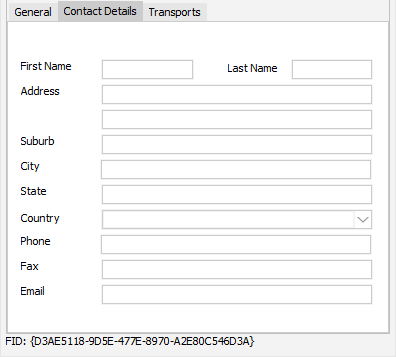
Enter the Contact Details for this new Trading Partner as required.
Fields
| Field Name | Description |
|---|---|
| First Name | First name of a contact at the Trading Partner. This corresponds to the Trading Partner tag <TPFirstName>. This corresponds to the Partner Object property Partner.FirstName. This is not available as a database column. |
| Last Name | Last name for the contact at the Trading Partner. This corresponds to the Trading Partner tag <TPLastName>. This corresponds to the Partner Object property Partner.LastName This is not available as a database column. |
| Address (line 1) | The first line of the address of the Trading Partner. This corresponds to the Trading Partner tag <TPAddress1>. This corresponds to the Partner Object property Partner.Address1. This is not available as a database column. |
| Address (line 2) | The second line of the address of the Trading Partner. |
| Suburb | The suburb of the address of the Trading Partner. |
| City | The city of the address of the Trading Partner. |
| State | The state of the address of the Trading Partner. |
| Country | The country of the address of the Trading Partner. |
| Phone | The phone number for above contact. |
| Fax | The fax number for this Trading Partner. |
| The email address for the above contact, |
Transports Tab
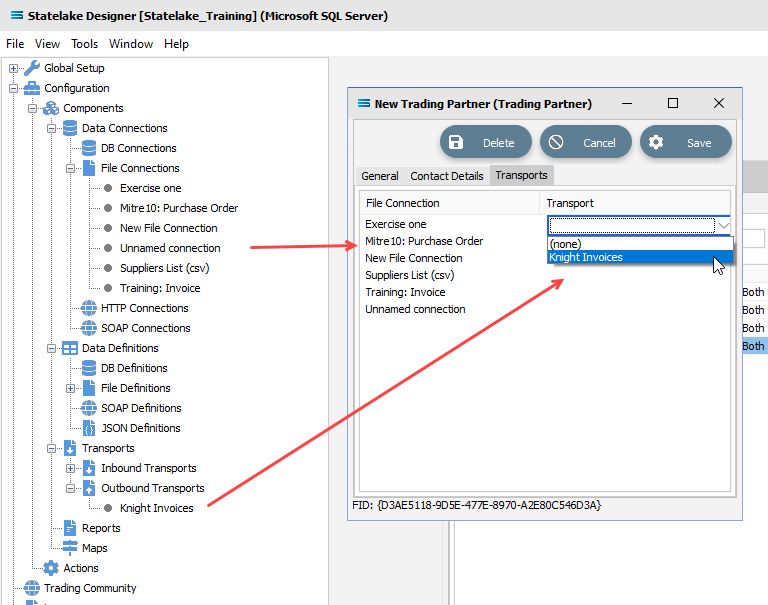
A list of Transports assigned to File Connections for this Trading Partner. All of the File Connections in the current configuration are listed and can be selected.
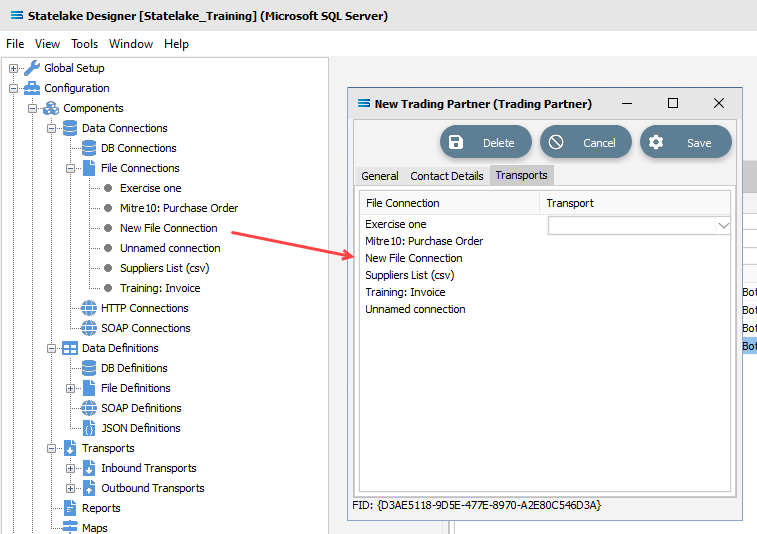
Clicking on a File Connection will open the Transport field.
Click the down arrow to pull up any available choices from the Outbound Transports. The available options are the Outbound Transports in the configuration regardless of whether the Trading Partner is a Customer or a Supplier.