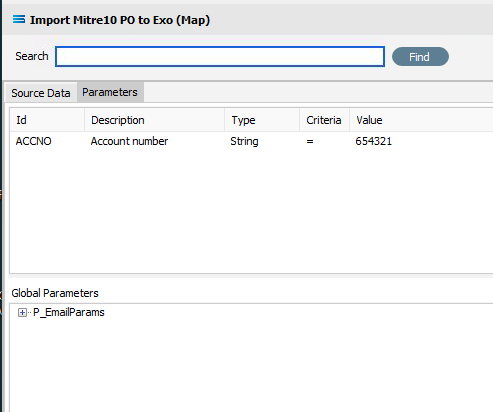
Appearance
New Parameter - Parameters Tab (Map)
After right-clicking anywhere within the Parameter list pane, a pop-up box with New and Edit will appear.
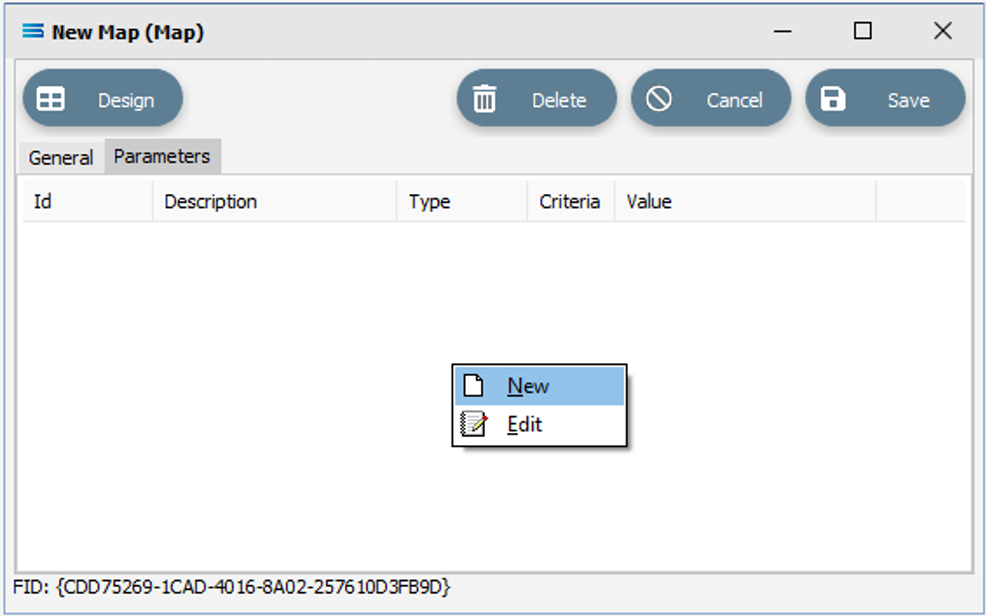
Select New to bring up and open the <New Param> window for completion.
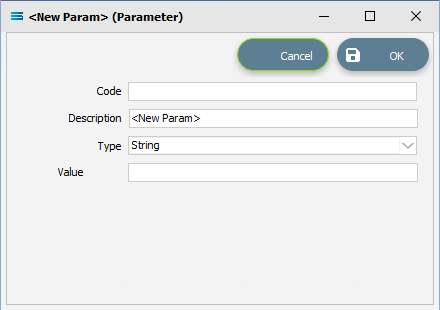
Fields
| Field Name | Description |
|---|---|
| Code | The ID name of the field. Forced to uppercase. |
| Description | Description of the field supplied in the Code field. Tab into this field to erase the prompt, else your description will be amended to the end of the prompt. |
| Type | Field type such as string or integer. Select from the available drop-down list. |
| Value | The value assigned to the field, as specified in the Code. |
Buttons
| Button Name | Description |
|---|---|
| OK | Click OK to Save. |
| Cancel | Click to Cancel the addition. |
Once created and added, the Parameter will display in the list.
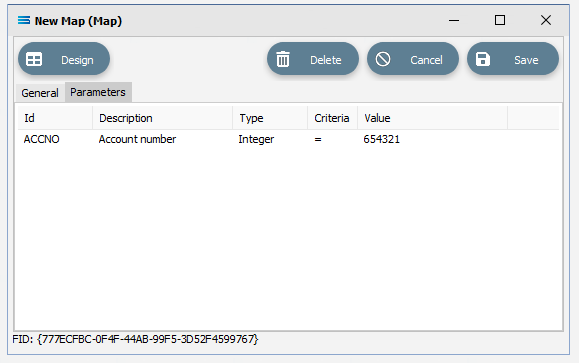
And once created, the Parameter will be accessible for inclusion only in the script for this Map, by either dragging from the local Parameter pane or by typing it directly into the script, such as the example below which shows any local Map Parameter and any global Parameter.
When using a global Parameter in a script, the parameter is identified in the Map script by prefixing the field name with P_, such as P_<Parameter Group> as illustrated below.
Please see Parameters for more information about Global Parameters.