

Appearance
Add Parameter
The <New Param> window opens and needs completion with values entered potentially for all Service Types.
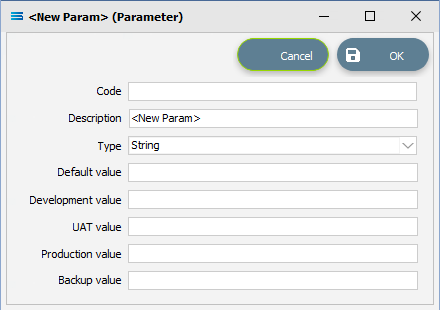
Fields
| Field Name | Description |
|---|---|
| Code | The ID name of the field. Input is forced to uppercase. |
| Description | Description of the field supplied in the Code field. |
| Type | Field type such as string or integer. |
| Default value | The Default value assigned to the field as specified in the Code. |
| Development value | The Development value assigned to the field as specified in the Code. |
| UAT value | The UAT value (User Acceptance Testing) assigned to the field as specified in the Code. |
| Production value | The Production value assigned to the field as specified in the Code. |
| Backup value | The Backup value assigned to the field as specified in the Code. |
Buttons
| Button Name | Description |
|---|---|
| OK | Click OK to save. |
| Cancel | Click to Cancel the addition. |
The value entered into the Default value field will be automatically populated into each of the other value fields.
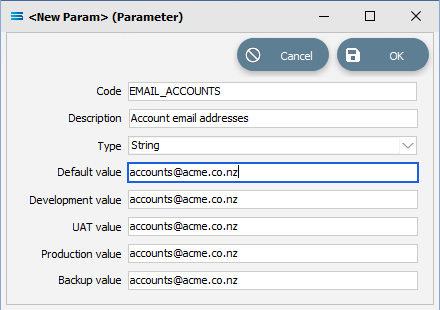
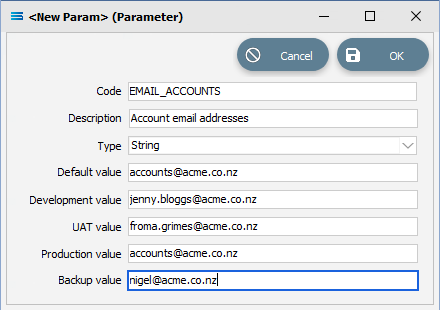
However, these values can be over-written with whatever else is required.
Once created and added, the newly created Parameter will display in the list.
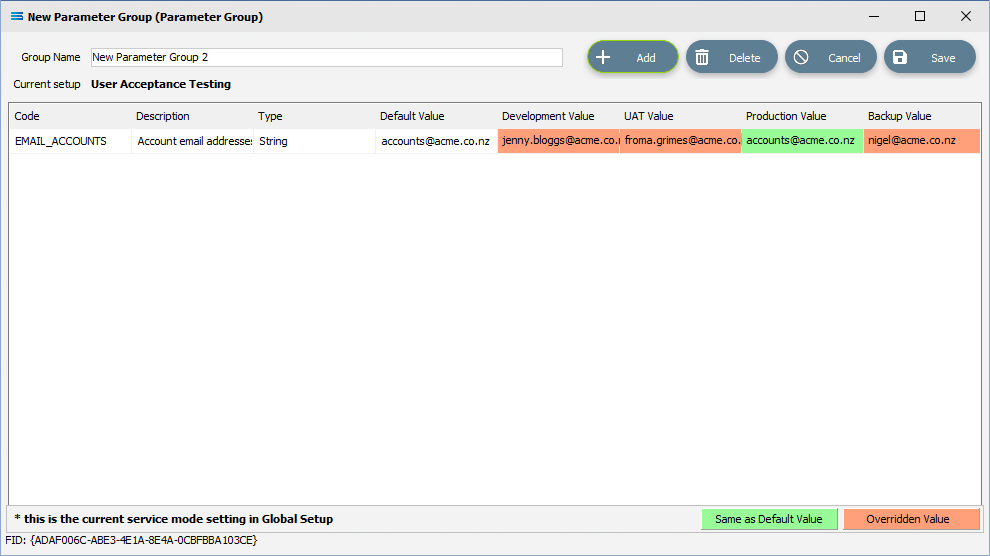
The values that mimic the default value are displayed with a green background, and the amended values that deviate from the default are displayed with a pink background as the above illustration shows.