
Appearance
Execution Tab
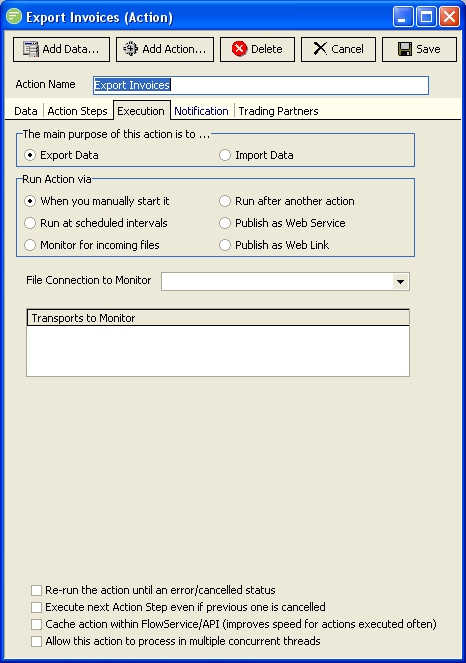
An Action is given a schedule for when it should execute. This may be either manually by an operator running the Action when desired, or automatically at scheduled intervals or by monitoring for a file to arrive. An Action could also be published as a web service allowing a third party to trigger the action by consuming the web service. By publishing as a web service it allows Flow actions to participate in a service oriented architecture, and this loose coupling allows for greater flexibility and stability for future changes.
When an Action executes it results in either a Success, Cancelled, Warning , or Error status. See Notification Tab
Fields
| Field Name | Description |
|---|---|
| The main purpose of this Action is to... | A list of references to Data Definitions. Single click an entry to edit its settings. Double click an entry to remove it. You can drag the entries to re-order them. |
| Run Action via | Select the method to use for triggering the execution of this Action |
| ::: tip Depending on the entry selected in the Run Action via option box, the following groups of fields will be displayed ::: | |
| When you manually start it | |
| File Connection to Monitor | Select a file connection that will be used for the Transports to Monitor. |
| Transports to Monitor | Add any transports you wish to check prior to the action executing. They will be checked using properties of the File Connection to Monitor, and any files received will be downloaded to this File Connection. |
| Re-run the action until an error/cancelled status | Once triggered the Action will repeat continuously until an Error or Cancelled status has occurred. |
| Run at scheduled intervals | |
| Run Type | Select either Daily, Weekly, or Monthly. The most common setting is Weekly. |
| Start Time | Enter when the Action will first execute |
| Enable re-occurring schedule | Select to enable re-occurring processing. If selected it will rename to Repeat Every |
| Repeat Every | Displays if re-occurring mode is selected. Deselect and it will rename to Enable -reoccurring schedule. Enter the time interval that the Action will repeat. |
| Finish Time | Enter the stopping time for the Action |
| Run once immediately on start up of FlowService | Select to have the Action run immediately upon the startup of FlowService. It will then continue to execute as per its schedule. |
| Daily Settings | Only displays if Run Type is Daily. Enter which days the schedule applies to |
| Weekly Settings | Only displays if Run Type is Weekly. Enter which weeks the schedule applies to, and which days of that week. |
| Monthly Settings | Only displays if Run Type is Monthly. Enter which months the schedule applies to, and which day of that month. |
| Allow action to be paused if error occurs | This option pauses the Action until the operator can resolve the error and resume the Action |
| Re-run the action until an error/cancelled status | Once triggered the Action will repeat continuously until an Error or Cancelled status has occurred. |
| Monitor for incoming files | |
| File Connection to Monitor | Select a file connection that will be used for the Transports to Monitor. This File Connection will also be monitored and the Action executed if a file arrives |
| Process any existing files when action starts | Select to have the Action check for existing files when FlowService starts. This is recommended. |
| Transports to Monitor | Add any transports you wish to check prior to the action executing. They will be checked using properties of the File Connection to Monitor, and any files received will be downloaded to this File Connection triggering the Action to execute. |
| ::: tip If you have added transports to monitor, you will see the scheduling fields appear as per "Run at scheduled intervals" run type. These schedule fields affect only when the transport is scheduled to execute. The Action will still execute each time a file arrives in the monitored folder regardless of whether it arrived to a transport or by some other process or person placing the file in that folder. ::: | |
| Run after another Action | |
| Execute after this Action | Select the Action that this one will execute after |
| Publish as Web Service | |
| Web Service Name | Enter the name for the web service you will publish |
| Publish as Web Link | |
| (no specific fields) | |
| Execute next Action Step even if previous one is cancelled | This allows the following Action Step to execute even if the result of the previous step is Cancelled. |
| Cache Action within FlowService/API | Select to cache this Action object in FlowService or FlowAPI. Improves speed for Actions executed regularly. |
| Allow this action to process in multiple concurrent threads | Allow this Action to execute in multiple threads concurrently. See General Tab |
| Use X concurrent threads | Specify the number of threads that can execute concurrently. See General Tab |