
Appearance
Restoring a configuration database
If you experience any problems with your Flow configuration database or an upgrade is not working you can revert to a previous backup.
TIP
You can also restore backups created by Flow's automatic backup option. These backups can be located in your local folder c:\program files\flow software\config\. You should also have these included in your daily network backup procedures to either tape or a remote location.
Start Microsoft SQL Management Console (Refer Installing Microsoft SQL Management Console)
Enter the details to login to the SQL server instance hosting your configuration databases. Click
Connect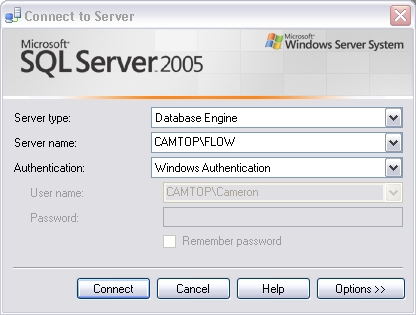
Expand the
Databasesfolder in the left hand tree menuIf restoring over the top of an existing database right click the database, otherwise right click the
Databasesfolder itself. SelectTasks > Restore > Database.Either select an existing
To Databaseor enter the name of a new database. SelectFrom Deviceoption and clickEclipseicon to the right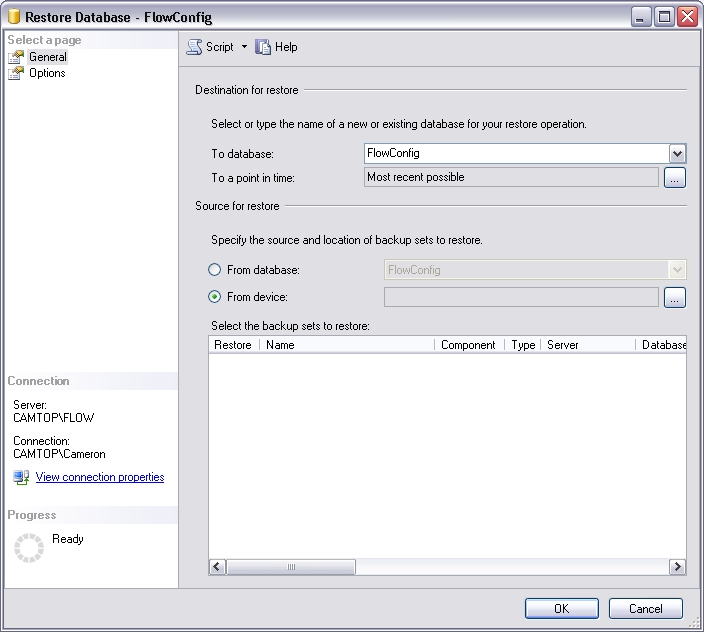
Click
Add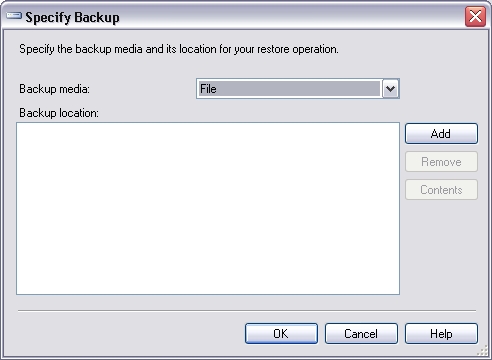
Select the backup file you wish to restore. Click
OKto return to previous screen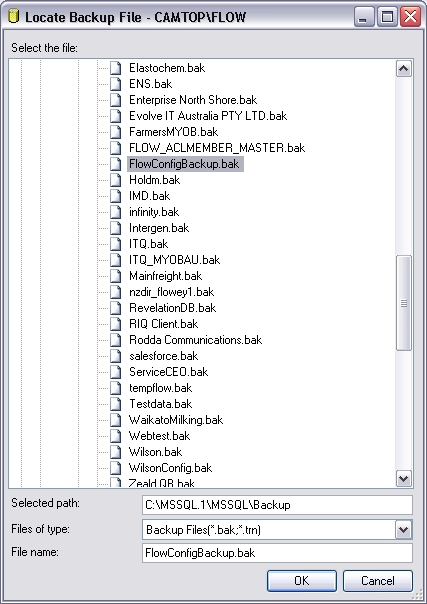
You will see the backup file you selected. Click
OKto use this file.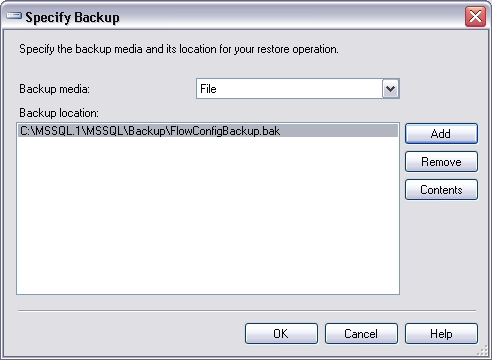
A list of backups will appear - a single backup file can contain multiple backup instances (If you select
Append to the existing backup setoption during backup process). Check the backup you wish to restore.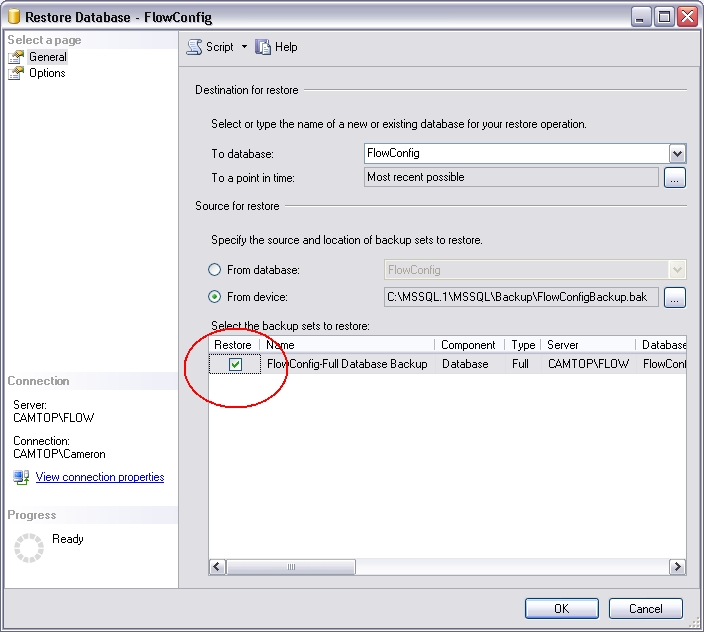
Select
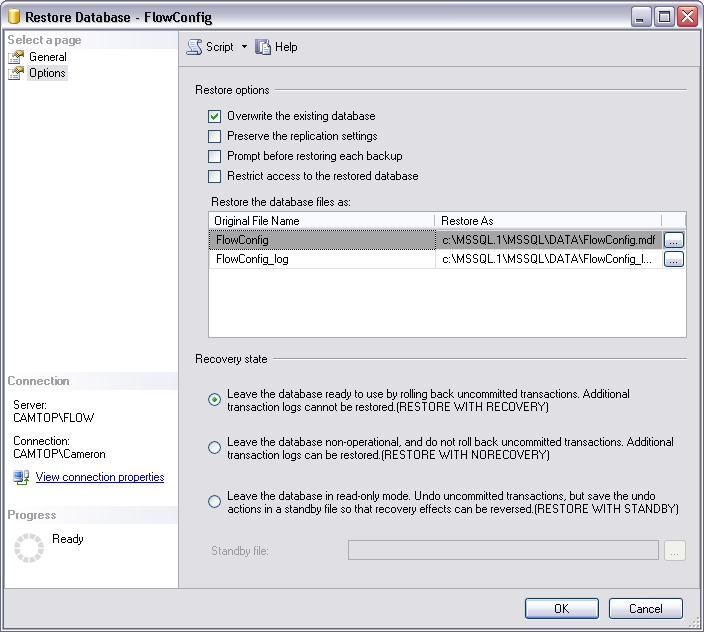
Options, checkOverwrite the existing database, and fill in an appropriate destination location for the restored database. Click OK to begin restoring the database.What location should I restore the backup to?
Each SQL Server instance installed on your computer has a default location for storing databases. You can use any location but the default is recommended. The Flow SQL Server instance has its default data folder at c:\program files\flow software\config\mssql.1\mssql\data
What name should I give the restored database file?
By convention you should name the data and log file the same name as the database name given in the general tab. The data file should have the extension .mdf and the log file .ldf.
Click
OKto the success message. If errors occur visit the Flow Knowledge Base or consult the SQL Server help files.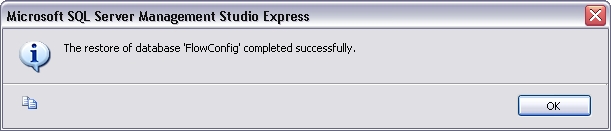
You can now continue to work with the configuration database within Flow.