
Appearance
Microsoft SQL Server connection
The following is an example of a Microsoft SQL Server connection.
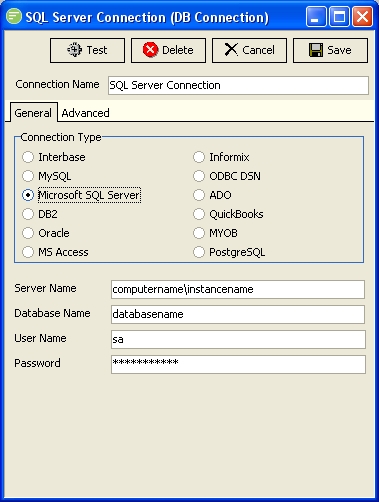
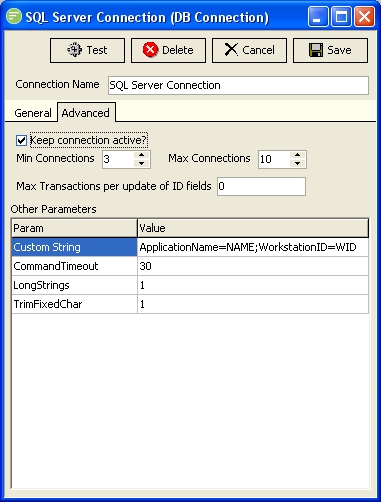
The below field information is related to creating a Microsoft SQL Server DB Connection. Refer to DB Connection for more general information on the fields.
General Tab Fields
| Field Name | Description |
|---|---|
| Server Name | Enter in the format computername\instancename. Computername is the windows name for the computer hosting the SQL Server platform. Instancename is the name of the SQL server instance running on the host computer. A host computer can have multiple SQL Server instances running on it. You can exclude the \instancename and Flow will connect to the default instance (if any). |
| Database Name | The name of the SQL Server database as displayed in the Microsoft SQL Server Management Console. |
| User Name | Enter a user as configured in Microsoft SQL Server Management Console. You can also leave this blank to use windows authentication (recommended). When using windows authentication it will connect to the database using the windows account that has opened Flow, or in the case of FlowService the account specified in the FlowService registration. |
| Password | Enter the password for the above user, or leave this blank also if using windows authentication. |
Advanced Tab Fields
| Field Name | Description |
|---|---|
| Keep Connection Active | Enable or disable as desired |
| Min Connections | Set to an appropriate value. Value shown above indicative only. |
| Max Connections | Set to an appropriate value. Value shown above indicative only. |
| Max Transactions per update of ID Field | SQL Server does not have a limit on the size of an In clause therefore set to 0 for unlimited. |
| Other Parameters | Enter as required. Valid parameters are shown below. |
Other Parameters
| Parameter Name | Description |
|---|---|
| Custom String | Allows you to set the application name and workstation name that connection will be shown as in Microsoft SQL Profiler. |
| CommandTimeout | You can override the default time out. This value is entered as seconds. The above image shows 30 seconds. |
| LongStrings | Flow will treat all character fields longer than 255 characters as memo type fields. This is great if you need to save memory when opening large tables that use large varchar type fields. |
| TrimFixedChar | Trailing spaces will be trimmed from string type fields. This will trim spaces inserted manually into varchar fields as well as padding inserted automatically into char type fields. |