
Appearance
Outbound Transports
Outbound Transports provide a connection to a remote service that you can send files to. You configure the Outbound Transport with the appropriate details for connecting to the remote service and sending files.
Outbound Transport are assigned to Trading Partners against specific File Connections. Whenever an Action executes for the trading partner that creates a file with a Outbound Transport assigned to it, this file will be delivered via the Outbound Transport. Because different trading partners can have different Outbound Transports assigned to the same File Connection, it allows you to configure one Action for creating a file that is sent to different transports based on the trading partner in question.
Create an Outbound Transport
- Open the Flow Designer
- Navigate to
Configuration > Components > Transports > Outbound Transports - Right click
Outbound Transportsand point and hover overNewto expand the context menu. Select the type of Outbound Transport that you would like to create. - Fill in the details and click
Save.
Edit an Outbound Transport
TIP
A single left click on the Outbound Transport will also open the edit window
- Open the Flow Designer
- Navigate to
Configuration > Components > Transports > Outbound Transports - Right click the desired
Outbound Transportand selectEdit - Change the details as required and click
Save.
Delete a DB Connection
Open the Flow Designer
Navigate to
Configuration > Components > Transports > Outbound TransportsRight click the desired
Outbound Transportand selectDelete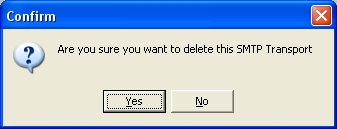
Click
Yesto confirm your choice
Copy a DB Connection
- Open the Flow Designer
- Navigate to
Configuration > Components > Transports > Outbound Transports - Right click the desired
Outbound Transportand selectCopy - The copy of the Outbound Transport will display in the edit window. Change the details as required and click
Save.
Export a DB Connection
Open the Flow Designer
Navigate to
Configuration > Components > Transports > Outbound TransportsRight click the desired
Outbound Transportand selectExport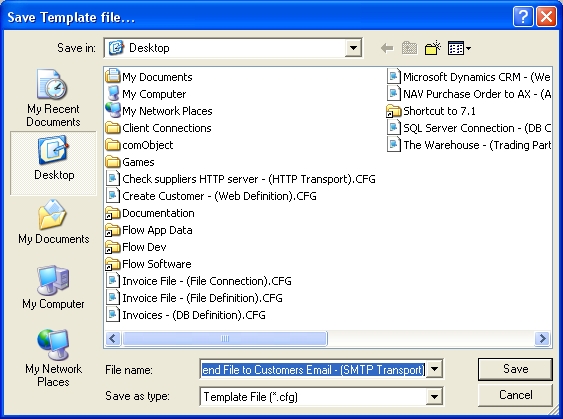
The template file will be assigned a default file name consisting of the name and type of the module. Change the name if desired and click
Save. See Exporting and Importing
Import a DB Connection
Open the Flow Designer
Navigate to
Configuration > Components > Transports > Outbound TransportsRight click
Outbound Transportsand selectImport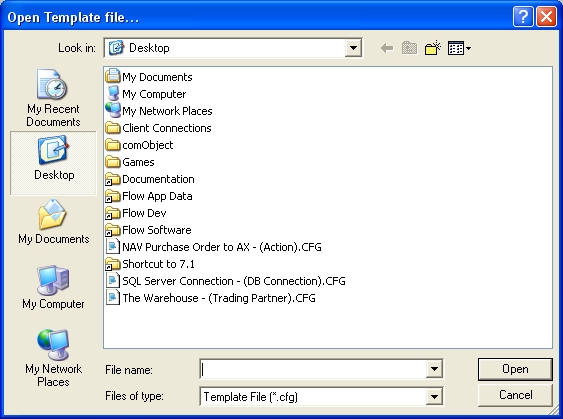
Select the Template file you wish to import and click
Open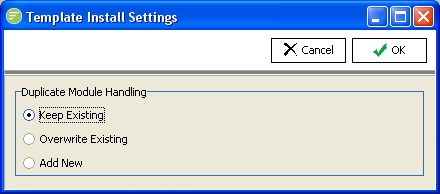
Choose the import method and click
OK. See Exporting and Importing A confirmation screen will show what has been imported.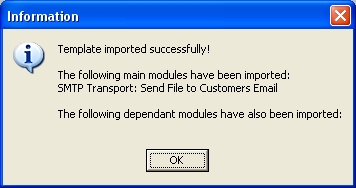
Change Security on DB Connection
- Open the Flow Designer
- Navigate to
Configuration > Components > Transports > Outbound Transports - Right click the desired
Outbound Transportand selectSecurity - Change the details as required and click
Save. See Managing Security
Refresh list of DB Connections
- Open the Flow Designer
- Navigate to
Configuration > Components > Transports > Outbound Transports - Right click
Outbound Transportsand selectRefresh